Enterprise Architect licence on your own laptop
KNIFE – Knowledge In Friendly Examples Series: Systemic Thinking in IT & Digital Fabrication Level: Beginner Tags:
enterprise-architectlicencetutorialonboardingbeginner
⚡ Quick guide (Top)
- Timing: the licence can only be installed during the first three weeks of the semester.
- Network: be on Eduroam, otherwise connect via the STU VPN — the licence server sits in the classroom computer network.
- Install Enterprise Architect (installation files are on the document server in AIS) and start it.
- In the licence window click Add Key → tab Get Shared Key → Name
FIIT, CompanySTU Bratislava→ Browse. - Server address:
ea.ucebne.fiit.stuba.sk→ OK. - Select the product EA Academic Edition → OK.
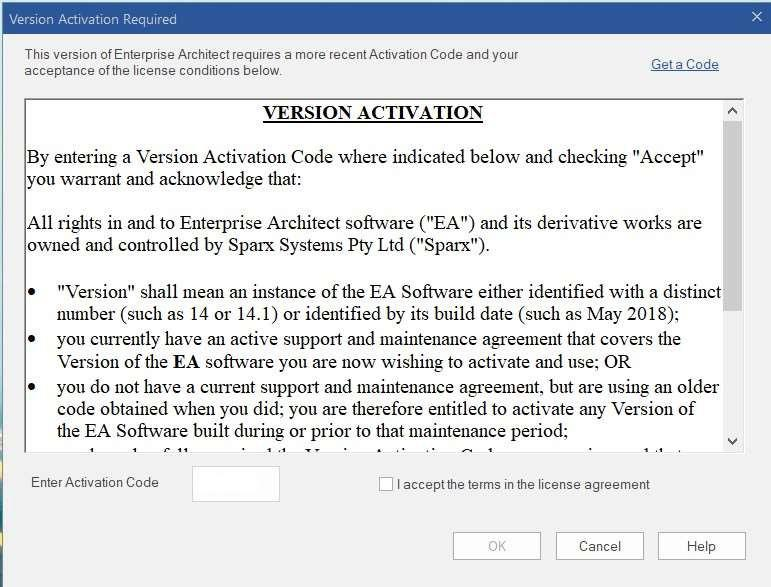
- Enter the activation code and accept the licence agreement.
🎯 What it solves (purpose, goal)
Enterprise Architect is licensed through a shared licence server in the classroom network, so it does not work on your own laptop out of the box. This guide walks through the one-time registration so that EA runs on your own machine, not only on the classroom computers.
🧪 How to use it (application)
Prerequisites
- The first three weeks of the semester — the licence can only be installed in this period.
- The Enterprise Architect installation files, located on the document server in AIS.
- A connection to the licence server, which is located in the classroom computer network. It can be reached from the Eduroam network; otherwise log in via VPN to the STU network (the guide also applies to Windows 10): https://www.stuba.sk/navody/vpn/w7_vpn.html
Steps
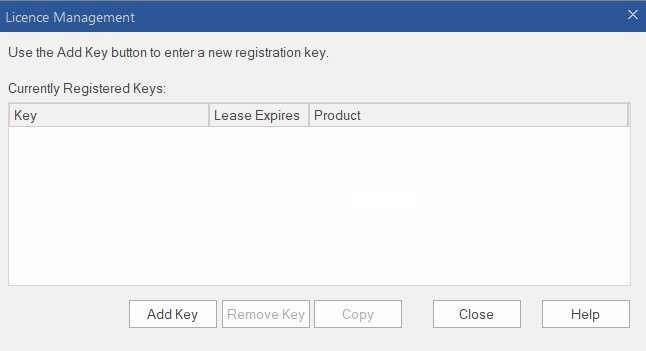
1. Add a key. After installing Enterprise Architect and clicking the icon on the Desktop, a window for adding a licence appears when the software starts. Click Add Key.
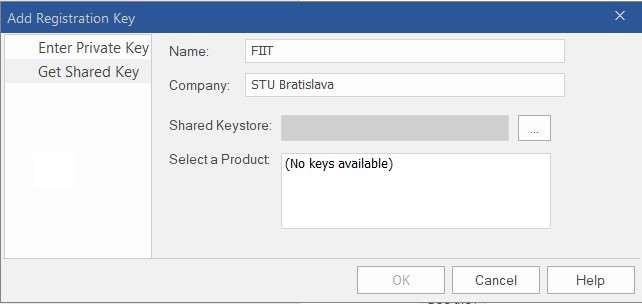
2. Fill in the shared key details. In the next window, on the Get Shared Key tab, fill in Name (FIIT) and Company (STU Bratislava). Click the Browse button.
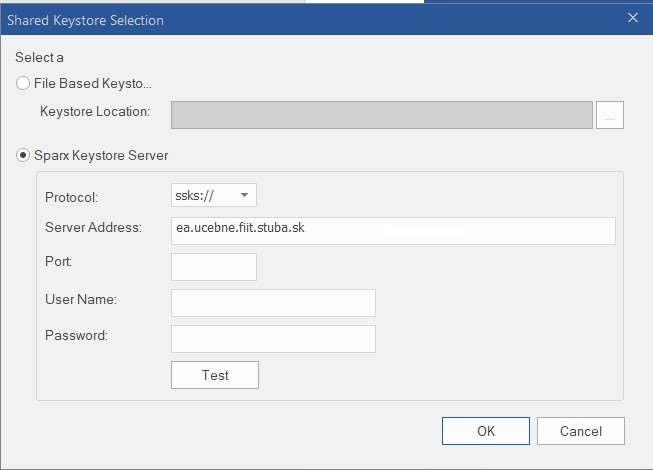
3. Enter the licence server. In the window that opens, enter the FQDN of the license server (ea.ucebne.fiit.stuba.sk) and click OK.
4. Select the product. In the next window, select the product EA Academic Edition and click OK.
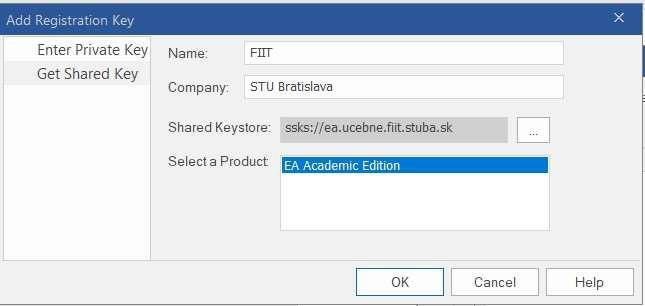
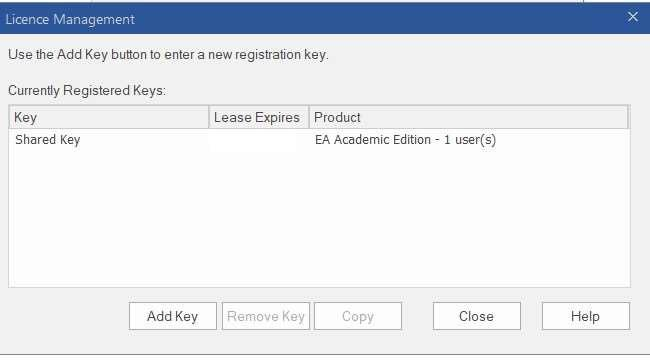
5. Check the licence period. In the window that opens, the system displays the period for which the Enterprise Architect product has an available license. After it expires, the license must be renewed.
6. Activate. In the last window, you need to enter the activation code and confirm your acceptance of the license agreement.
💡 Tips and notes
- Can't reach the server? The licence server is only reachable from the classroom network — check that you are on Eduroam or connected to the STU VPN.
- Licence expired? The licence has a limited period (step 5) and must be renewed after it expires.
- Missed the first three weeks? The licence can no longer be installed on your own laptop after that period.
✅ Value / Summary
One written-down procedure with a screenshot for every step, instead of repeatedly explaining the same click-path to each student — and a clear statement of the two things that most often go wrong: the time window (first three weeks) and network access (Eduroam or VPN).
Sources
Instructions for obtaining a licence for Enterprise Architect on your own laptops (FIIT STU). A school-specific KNIFE kept in the class repository, deliberately not in the canonical KNIFE repository.